KeystoneJS (Node.js CMS & Web Application Platform)
Get link
Facebook
X
Pinterest
Email
Other Apps
Introduction of KystoneJs
Keystone.js is a generic content management framework, meaning that it can be used for developing a variety of web applications using Javascript. Because of its modular architecture and clean separation of various functionality, it is especially suitable for developing large-scale applications such as portals, forums, content management systems (CMS), e-commerce projects, RESTful Web services, and
so on.
KeystoneJS is a powerful Node.js content management system and web app framework built on express and mongoose. Keystone makes it easy to create sophisticated websites and apps and comes with a beautiful auto-generated Admin UI.
Why use Keystone.js
Keystone.js provides a standardized set of components that allow for the fast and easy development of web applications that can be quickly developed, maintained and extended.
Keystone.js has a number of key features that makes it worth using including:
Modularity - Keystone will configure express - the de facto web server for node.js - for you and connect to your MongoDB database using Mongoose, the leading ODM package.
Auto-generated Admin UI - Whether you use it while you’re building out your application, or in production as a database content management system, Keystone’s Admin UI will save you time and make managing your data easy.
Session Management - Keystone comes ready out of the box with session management and authentication features, including automatic encryption for password fields.
Email Sending - Keystone makes it easy to set up, preview and send template-based emails for your application. It also integrates with Mandrill.
Form Processing - Want to validate a form, upload an image, and update your database with a single line? Keystone can do that, based on the data models you’ve already defined.
Database Fields - IDs, Strings, Booleans, Dates and Numbers are the building blocks of your database. Keystone builds on these with useful, real-world field types like name, email, password, address, image and relationship fields.
The generator will ask you a few questions about what features you'd like to include, then configure and copy all the files you'll need into your project.
It will also install dependencies from npm so you're ready to go.
Run it in your command line like this:
node keystone
Then open http://localhost:3000 to view it in your browser.
Project Structure
With your package and web scripts in place, it's time to scaffold out containers for the rest of your app. Create the following directory structure:
|--lib
|  Custom libraries and other code
|--models
|  Your application's database models
|--public
|  Static files (css, js, images, etc.) that are publicly available
|--routes
|  |--api
|  |  Your application's api controllers
|  |--views
|  |  Your application's view controllers
|  |--index.js
|  |  Initialises your application's routes and views
|  |--middleware.js
|  |  Custom middleware for your routes
|--templates
|  |--includes
|  |  Common .jade includes go in here
|  |--layouts
|  |  Base .jade layouts go in here
|  |--mixins
|  |  Common .jade mixins go in here
|  |--views
|  |  Your application's view templates
|--updates
|  Data population and migration scripts
|--package.json
|  Project configuration for npm
|--web.js
|  Main script that starts your application
We also recommend that your application will be simpler to build and maintain if you mirror the internal structure of your routes/views and templates/views directories as much as possible.
Models
Before you can start your Keystone app, you'll need some data models.
We're going to start with the User model, which is special - we need it so that Keystone can do authentication and session management.
Create the following two files in the /models folder:
models/index.js
This is the script that includes your models. It doesn't need to export anything.
require('./users.js');
models/users.js
This script initialises the User model. It doesn't need to export anything, but the model must be registered with Keystone.
For Keystone to provide authentication and session management to your application, it needs to know a few things (which we've now configured).
To recap:
The option user model must be the name of the Model that Keystone should look in to find your users. If you use a different model name, be sure to set the option correctly.
If you want your application to support session management, set the session option to true. Loading sessions incurs a small overhead, so if your application doesn't need sessions you can turn this off.
Keystone has built-in views for signing in and out. To enable them, set the auth option to true. You can also implement custom signin and signout screens in your applications' views.
Sessions are persisted using an encrypted cookie storing the user's ID. Make sure you set the cookie secret option to a long, random string.
The user model must have a canAccessKeystone property (which can be a virtual method or a stored boolean) that says whether a user can access Keystone's Admin UI or not. *Note* If you choose to use a virtual method setting the value in mongodb directly will not authenticate correctly. A virtual method is useful when the criteria for access is more complex. See Mongoose virtuals
Routes
Our first view controller is going to be very simple - just rendering a template. Create an routes/views/index.jsfile like this:
Now, for the template our route will render. The render method looks in the views directory specified in our web.js, which we set to /templates/view.
First up, create templates/views/index.jade:
templates/views/index.jade
The template for our home page view
extends ../layouts/base

block content
    h1 Hello World
Common Route Middleware
Putting your common middleware in a separate routes/middleware.js file keeps your route index nice and clean. If your middleware file gets too big, it's a good idea to restructure any significant functionality into custom modules in your projects /lib folder.
Middleware functions
Keystone expects middleware functions to accept the following arguments:
req - an express request object
res - an express response object
next - the method to call when the middleware has finished running (including any internal callbacks)
Flash message support (no, not that flash)
Keystone includes support for 'flashing' messages to your visitors via session. The default setup above supports four categories, all of which can be styled differently:
info
success
warning
error
You can easily support other types of messages by updating your middleware and the .jade template that renders them (which we'll get to below).
To use flash messages in your route controllers, do this:
req.flash('info', 'Some information!');
Public Assets
You'll want to add your own css, javascript, images and other files to your project. In the examples above, we're including /styles/site.min.css and /js/lib/jquery-1.10.2.min.js.
Keystone will serve any static assets you place in the public directory. This path is specified in web.js by the static option.
It will also automatically generate .css or compressed .min.css files when a corresponding .less file is found in the public folder, as specified in web.js by the less option. For more information on LESS, see lesscss.org.
Production vs. Development
Keystone applies different settings in production and development modes. The environment will default to development, so you should set the NODE_ENV environment variable to production on your production servers for better performance.
Your app can detect which environment it is running in by callingkeystone.get('env').
When you deploy your KeystoneJS app to production, be sure to set your ENV environment variable to production. You can do this by setting NODE_ENV=production in your .env file, which gets handled by dotenv.
KeystoneJS Admin UI
When logged into the site as a Superuser, a left menu item titled 'Keystone Admin UI' will appear. This link allows you access to the KeystoneJS Admin UI at the path /keystone. You can get back to the ConnextCMS Dashboard by clicking the link at the top of the page. This left menu item will not appear for Admin users.
Creating an admin user
To begin with, we would need a user to manage the admin site. Keystone.js includes code for the creation of an admin user by default when the app is started for the first time. The user is created using the updatesframework provided by Keystone.js. Updates provide an easy way to seed your database, transition data when your models change, or run transformation scripts against your database.
The default admin is created with the below code that is stored at /updates/0.0.1-admins.js with the following credentials:
Start up our app using the node keystone.js command and open http://127.0.0.1:3000/keystone/signin in your browser. You should see the administration login page shown below.
Log in using the credentials of the user created in the previous step.
Dynamically adding columns to Admin UI
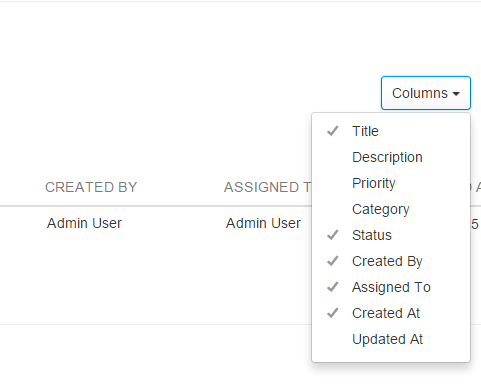
One of the most useful feature for looking at data in the admin interface is the ability to dynamically add columns that we are interested in without having to modify the definition of the model in code. The columns dropdown on the top right lists all the fields defined on our model. Columns that have been listed in the defaultColumns option will appear with tick marks next to them. We can then pick any additional columns that we are interested in working with.
If a custom field was chosen, it will be added to the end of the displayed column headers. We can reset the list of displayed columns to the original state by using the ‘Reset to default’ option that will appear in the dropdown once one or more columns have been selected.
Disabling the Admin UI
You can disable the Admin UI by setting the headless option to true.
This will allow you to use keystone.start() or keystone.routes(app) without Keystone creating route bindings for the Admin UI routes under /keystone
Services
Google Analytics
Keystone has support for Google Analytics tracking in the Admin UI. To enable tracking, set the following configuration options:
To enable these features, obtain an API Key from Google and enable the Google Maps v3 and Google Places APIs for it, then set the following options:
keystone.set('google api key','your-browser-key');
keystone.set('google server api key','your-server-key');
keystone.set('default region','au'); // optional, will limit autocomplete results to Australia
Amazon S3
KeystoneJS supports Amazon S3 for file upload and hosting, with the S3File field type.
To use the S3File field in your app, sign up for an account, create an S3 bucket, and get your key and secret.
Then set the s3 config option to an object containing your configuration (see example below).
Alternatively, set the S3_BUCKET, S3_KEY and S3_SECRET environment variables.
To use the AzureFile field in your app, sign up for an account, enter into Azure Management Portal. Create a storage account with new(button), data services, storage. In storage account page get the access (account name, key (valid primary or secondary key)) with the button "manage access key".
Then set the azurefile config option to an object containing your configuration
keystone.set('azurefile config',{ account:'my storage account', key:'secret api key'});
Cloudinary
Cloudinary is an image upload / resizing / hosting service that makes it easy to implement image management in your KeystoneJS app using the CloudinaryImage and CloudinaryImages field types.
To use the Cloudinary Image fields in your app, sign up for an account (Cloudinary offers a free tier with up to 500MB storage, 50,000 images and 1GB data transfer) and get your cloud name, api key and api secret.
If you are serving over HTTPS and want to ensure that cloudinary images are also serverd over HTTPS, set the cloudinary secure option to true.
keystone.set('cloudinary config',{ cloud_name:'my-cloud', api_key:'abc', api_secret:'123'});
// or
keystone.set('cloudinary config','cloudinary://api_key:api_secret@cloud_name');
// optional, will prefix all built-in tags with 'keystone_'
keystone.set('cloudinary prefix','keystone');
// optional, will prefix each image public_id with [{prefix}]/{list.path}/{field.path}/
keystone.set('cloudinary folders',true);
// optional, will force cloudinary to serve images over https
keystone.set('cloudinary secure',true);
Embed.ly
Embed.ly is a service that will parse a url (e.g. Youtube embed link) and return a whole lot of useful information, like the provider name, summary metadata, width and height of videos, as well as a clean link to use for embedding media in your views. They offer a free plan for up to 5,000 urls per month.
The Embedly field type is an easy way to integrate their API with your KeystoneJS app.
To configure KeystoneJS to support the Embed.ly API, simply sign up for an account, get your api key, and set the embedly api key option.
This option will default to the EMBEDLY_API_KEY environment variable if it is set.
keystone.set('embedly api key','your-key');
Mandrill
Mandrill is a scalable and affordable email infrastructure service that allows you to send emails easily. They offer a free plan for up to 12,000 emails per month.
To configure KeystoneJS to support the Mandrill API, simply sign up for an account, get your api key, and set both the mandrill api key and mandrill username options.
These options will default to the MANDRILL_API_KEY & MANDRILL_USERNAME environment variable's if set.
keystone.set('mandrill api key','your-key');
keystone.set('mandrill username','your-username');
Thanks for introducing KeystoneJS a JavaScript web application framework in detail with some practical example. but Ionic is also one of the most popular mobile app development framework. If you have any requirement to Hire Ionic App Developer for android and ios mobile app development. Please visit us.
Build amazing apps in one codebase, for any platform, with the web What is Ionic? Ionic is an HTML5 mobile app development framework targeted at building hybrid mobile apps. Hybrid apps are essentially small websites running in a browser shell in an app that have access to the native platform layer. Hybrid apps have many benefits over pure native apps, specifically in terms of platform support, the speed of development, and access to 3rd party code. Services and features: Ionic provides all the functionality which can be found in native mobile development SDKs. Users can build their apps, customize them for Android or iOS , and deploy through Cordova . Ionic includes mobile components, typography, interactive paradigms, and an extensible base theme. Browser Support: Ionic 1 Ionic V1 is focused on building native/hybrid mobile apps rather than mobile websites. ...
 Keystone.js is a generic content management framework, meaning that it can be used for developing a variety of web applications using Javascript. Because of its modular architecture and clean separation of various functionality, it is especially suitable for developing large-scale applications such as portals, forums, content management systems (CMS), e-commerce projects, RESTful Web services, and

Thanks for introducing KeystoneJS a JavaScript web application framework in detail with some practical example. but Ionic is also one of the most popular mobile app development framework. If you have any requirement to Hire Ionic App Developer for android and ios mobile app development. Please visit us.
ReplyDelete